.png?width=75&height=75&name=4.0%20(7).png)
All QVscribe for web users will need the following to get up and running:
-
Download files for QVscribe Browser Extension or the ability to install using the Chrome Webstore
-
The QVscribe Teams Server hostname/IP
- Active Directory Support Installer *Note: Necessary if installing from Chrome/Edge stores and wanting to authenticate with Microsoft Active Directory
-
Their username and password *Note: This not needed if you are using Active Directory for licensing
Below outlines all of the potential steps they will need to take to get up and running with QVscribe for Web.
QVscribe Doors Connector Installation Process
There are two ways to install QVscribe now, either between installing the .msi or via the Webstore:
Installing using the Webstore
QVscribe Extension (for use with QTS)
QRAcloud Extension (for use with QRAcloud)
Go to the Chrome webstore and add the extension to your machine and click on Add to Chrome:

🤔Unsure which extension version to download? Contact us at support@qracorp.com for assistance.
Installing using the .msi
Step 1: Run the installer QVscribeForChrome_[version].msi installer
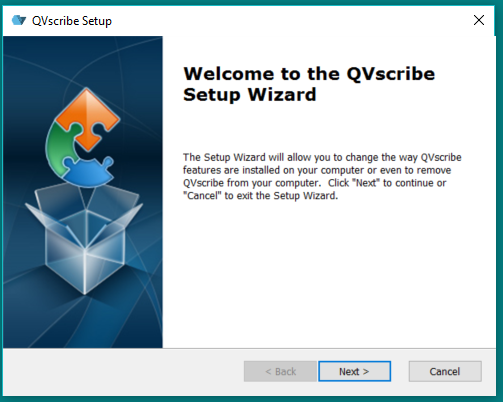
Step 2: Open Google Chrome and type chrome://extensions in your address bar.

Step 3: Enable the Developer Mode present on the top right corner of the window.

Step 4: Select Load-Unpacked
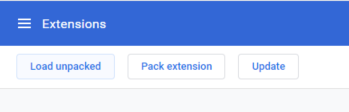
Step 5: Select folder (%localappdata%/Programs/QRA/QVscribe Chrome/chrome/extension) in your Google Chrome. The QVscribe 6.0 icon will show up on the top-right corner in the extension bar.
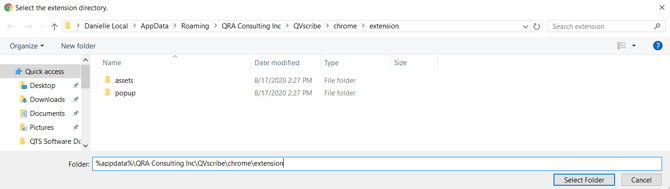
Step 6. Disable the Developer Mode.

DOORS Next Generation Connector
For DOORS Next Generation users only, there is one additional step needed for set-up. Please refer to the following article to set up the Open Social Gadget Widget.
QVscribe for DOORS Next Connector Installation