.png?width=75&height=75&name=4.0%20(7).png)
Step 1: Open the QVscribe extension
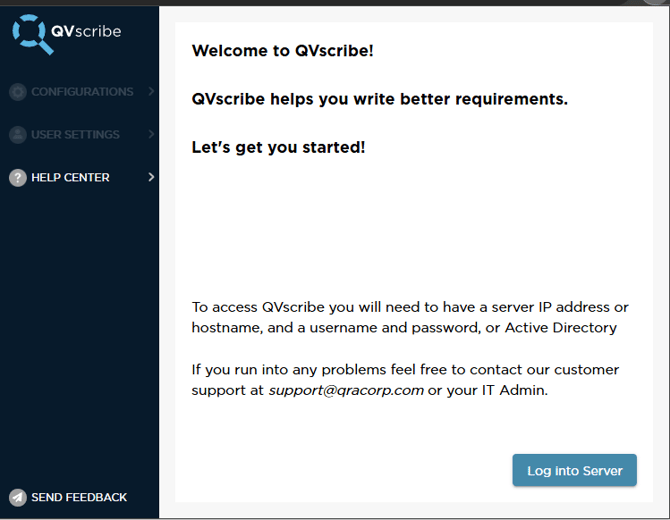
Click on the QVscribe 6.0 icon, it will be greyed out if you are not signed in.

To login, click on the log into server button
Step 2: Choose Your Connection Type
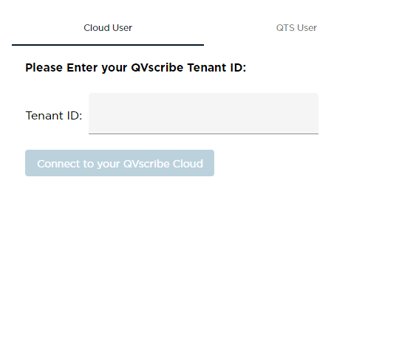
After you click on login a new tab will open prompting you to choose between Cloud user or QTS user
Step 3: Select Your Authentication Method
Your available authentication method will depend on how your organization has configured QVscribe. This information should be provided by your QTS Administrator.
- Cloud users will be prompted to sign in using their email and Microsoft account.
-
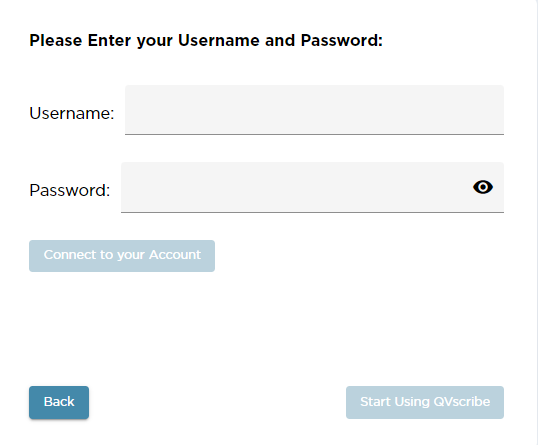
QTS User Directory users will sign in using a username and password.
-
Active Directory users will authenticate automatically using their computer login credentials.
Option 1: Connecting using QVscribe Cloud
- For Cloud user, you will need to enter the cloud tenant that you were given by your deployment staff member, once you add it click on Connect to your QVscribe Cloud
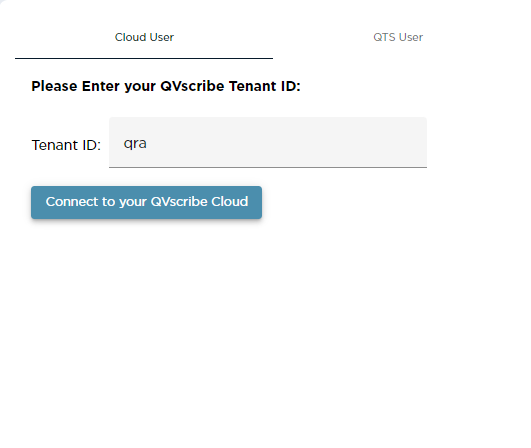
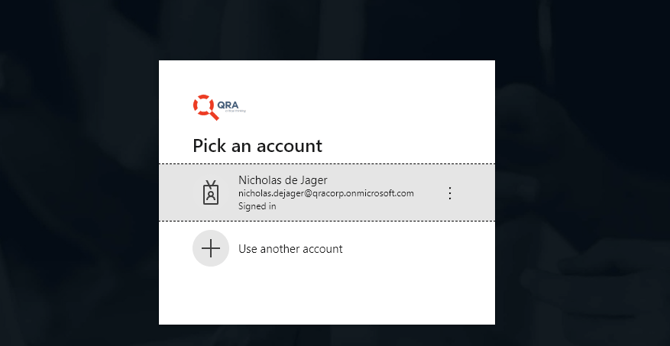
- Once you click on Connect to your QVscribe Cloud, a popup will appear to sign into your Microsoft account:
Option 2: Connecting by QTS User Directory (Username and Password)
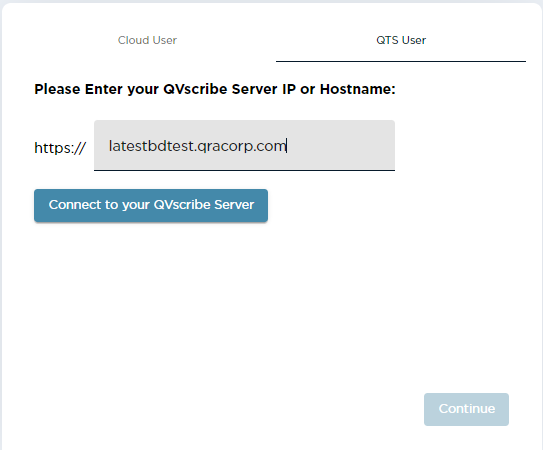
You will need to enter your QVscribe user address
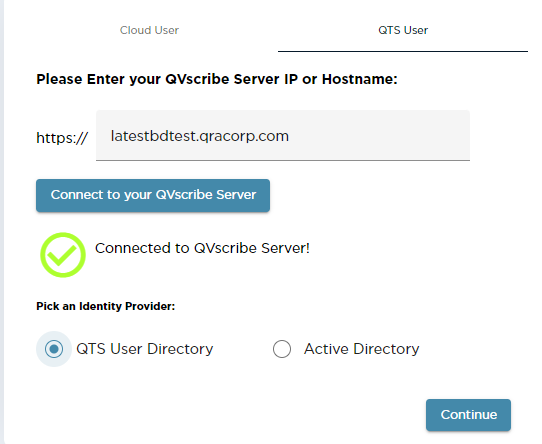
You will need to choose QTS User Directory and click on "Continue"
You will be prompted to enter your Username and password provided to you by your QTS admin:
Option 3: Connecting by Active Directory
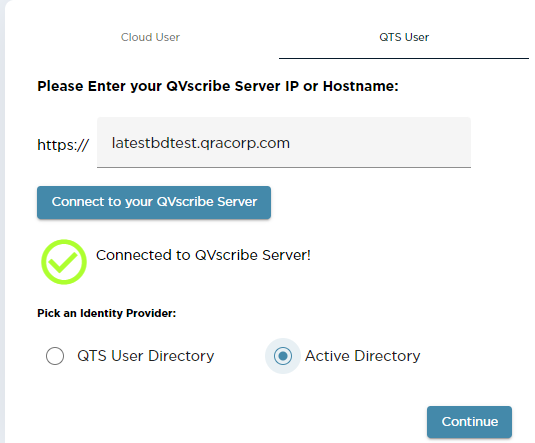
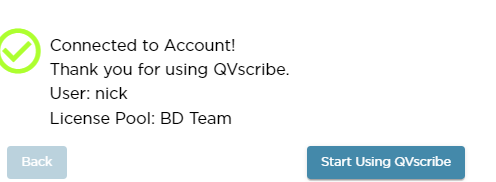
Once you have connected you by AD, you will receive the following message.