.png?width=75&height=75&name=4.0%20(7).png)
This guide explains how to access and navigate the QVscribe Configuration Window for QVscribe for Web.
QVscribe for Web integrates with the following platforms:
-
Jama Connect
-
IBM DOORS Next Generation
-
Siemens Polarion
The configuration settings described in this article apply to all QVscribe Web integrations unless otherwise noted.
Accessing the Configuration
The QVscribe Configuration Window can be accessed through the QVscribe browser extension in Google Chrome or Microsoft Edge.
To open the configuration window:
-
Click the QVscribe extension icon located to the right of the browser address bar.

-
The QVscribe extension window will open, displaying the current configuration and user information.
Overview of the Configuration Window
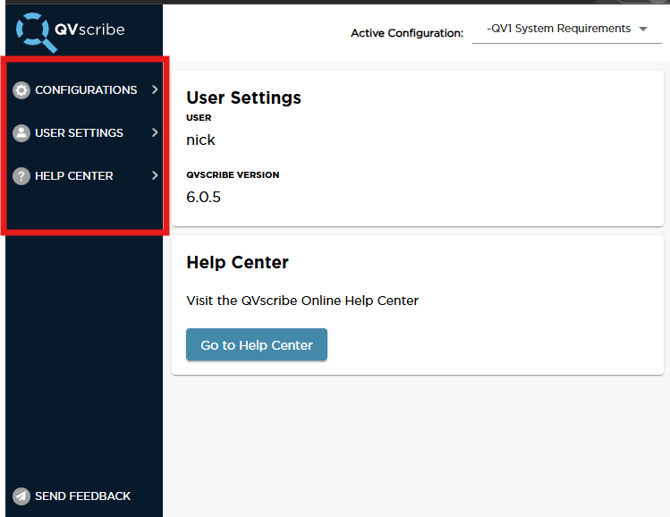
The QVscribe configuration window contains three main sections:
-
Configurations
-
User Settings
-
Help Center
The default screen displays:
-
the active configuration
-
the currently signed-in user
-
the extension version number
-
the status of the QVscribe analyzer
-
quick access to the QVscribe Help Center
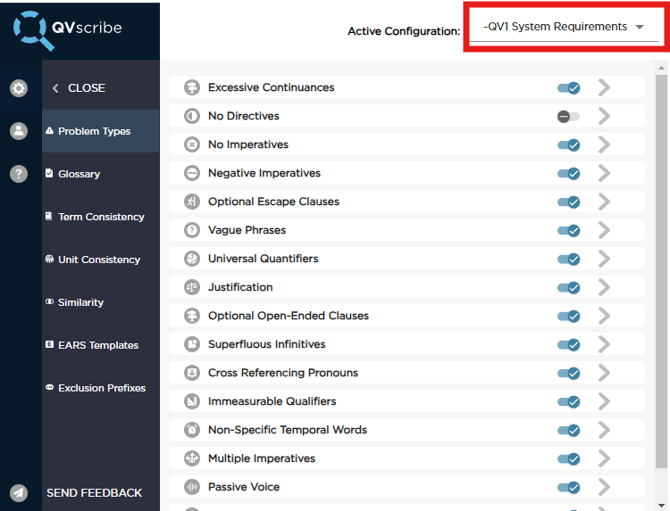
Users can select from any saved configuration using the configuration dropdown menu located at the top of the extension window.
Selecting a configuration will apply that configuration to the QVscribe analysis.
⚠️ Note: All users can select configurations, but modifying configuration settings requires the “Configuration Author” role.
Configuration Settings
The Configurations section allows configuration authors to modify analysis settings used during requirement quality analysis.
These settings include:
-
Problem Types
-
Glossary
-
Term Consistency
-
Unit Consistency
-
Similarity
-
EARS Templates
-
Exclusion Prefixes
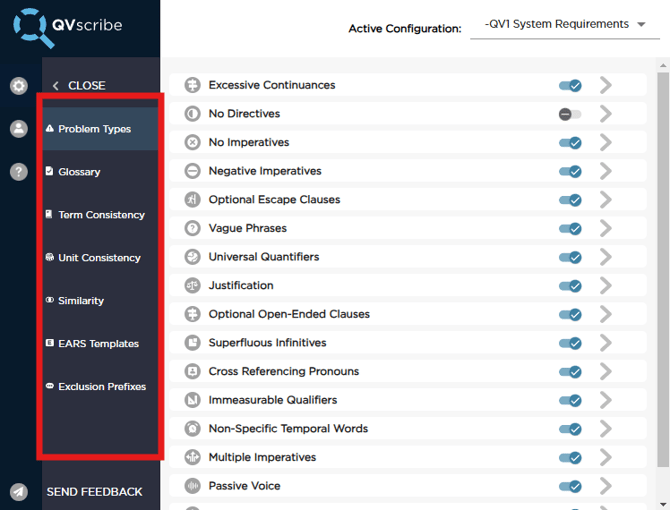
Once the Configurations tab is selected, a secondary navigation menu allows users to access the settings for each section.
These settings apply to all supported QVscribe Web integrations unless otherwise specified.
Problem Types
The Problem Types section allows configuration authors to customize the types of language issues detected during requirement analysis.
Each Problem Type category represents a class of words or phrases associated with a specific quality indicator.
Each category contains two lists:
Your Words
Words or phrases used during QVscribe analysis.
Example Words
Common examples of words typically associated with that problem type.
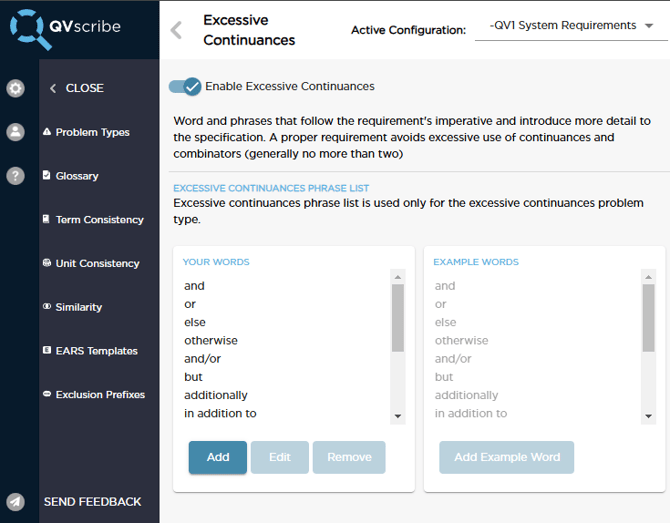
The example list is pre-populated by QVscribe but can be modified to align with your organization’s standards.
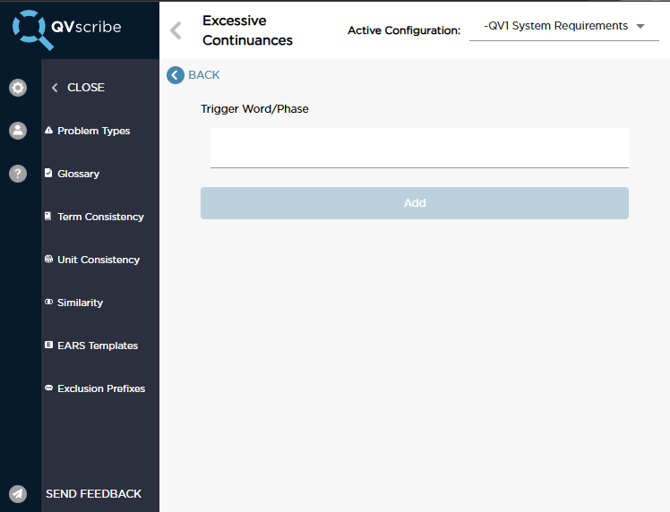
Adding a Word
-
Click Add below the list.
-
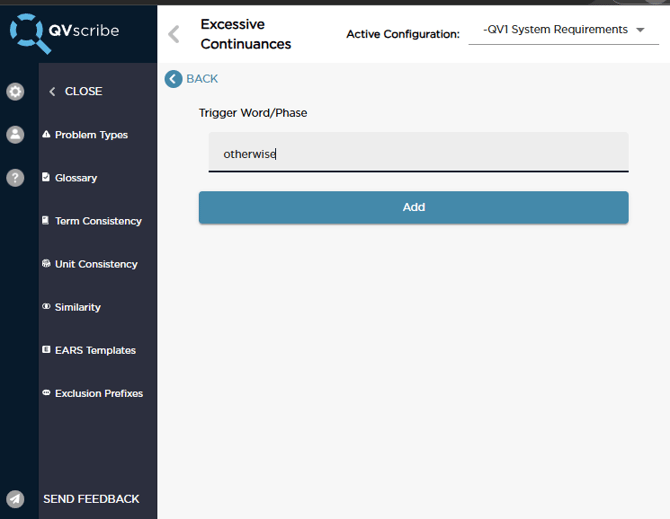
Enter the word or phrase.
-
Click OK.
Editing a Word
-
Select the word in the list.
-
Click Edit.
-
Modify the word or phrase.
-
Click OK.
Removing a Word
-
Select the word in the list.
-
Click Remove.
Custom Configurations
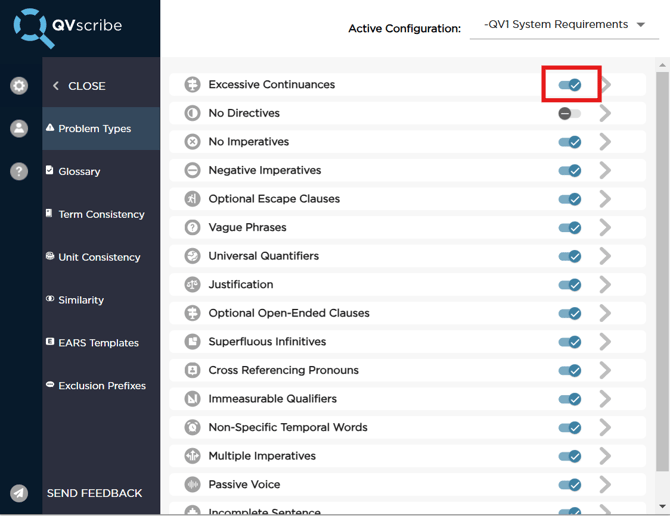
Configuration Authors and QTS Administrators can enable or disable individual Problem Types.
This is done by toggling the switch located either:
-
at the category level
-
or within the individual Problem Type.
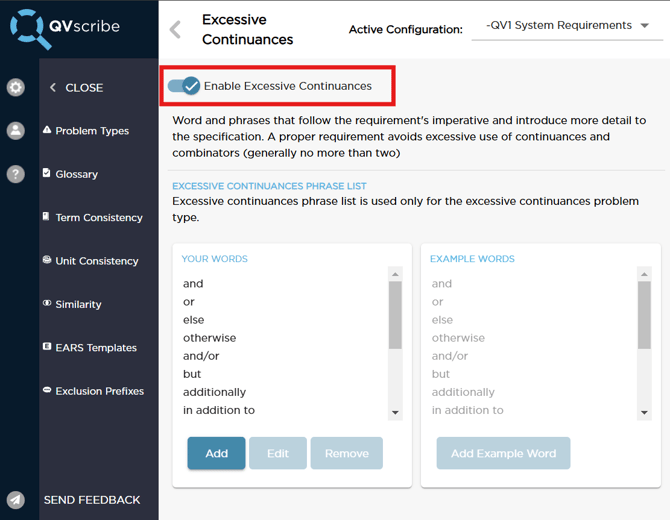
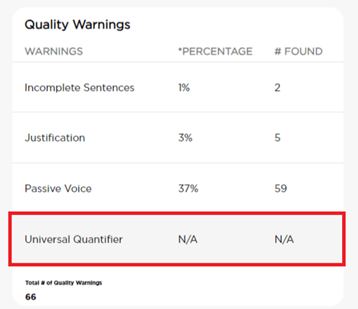
Disabling a category removes it from scoring calculations.
When disabled, QVscribe displays “N/A” for that category in the analysis results.
Glossary
The Glossary allows organizations to define approved terms and definitions.
This helps improve consistency across requirements and reduces ambiguity.
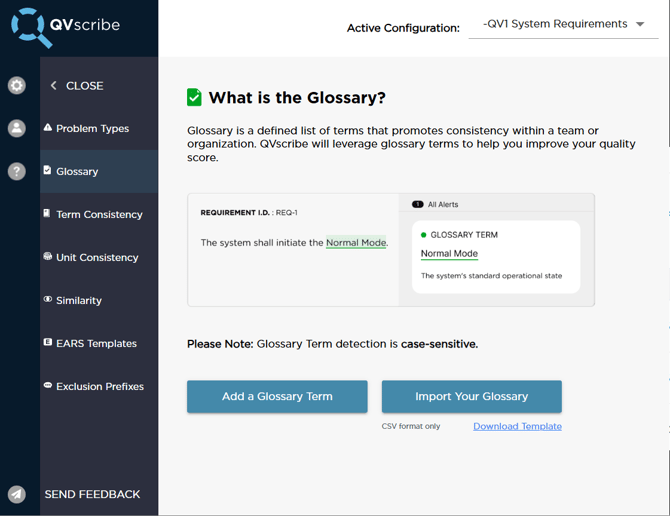
Glossary entries can:
-
clarify terminology
-
define acronyms
-
allow domain-specific language that might otherwise trigger warnings.
Managing Glossary Terms
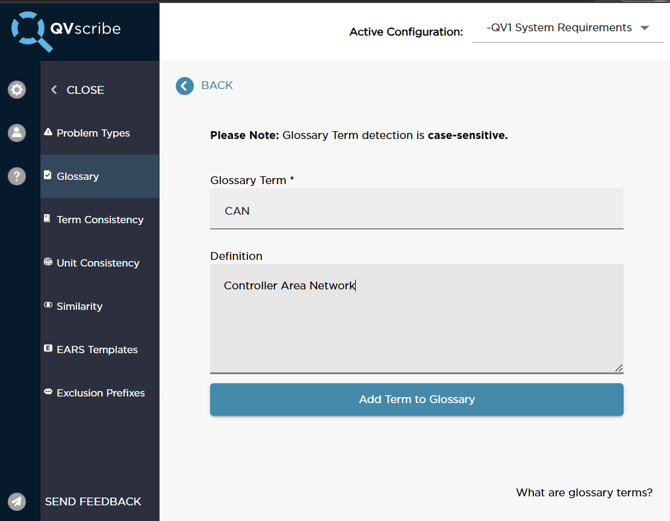
You can:
-
Add new terms
-
Edit existing terms
-
Remove terms
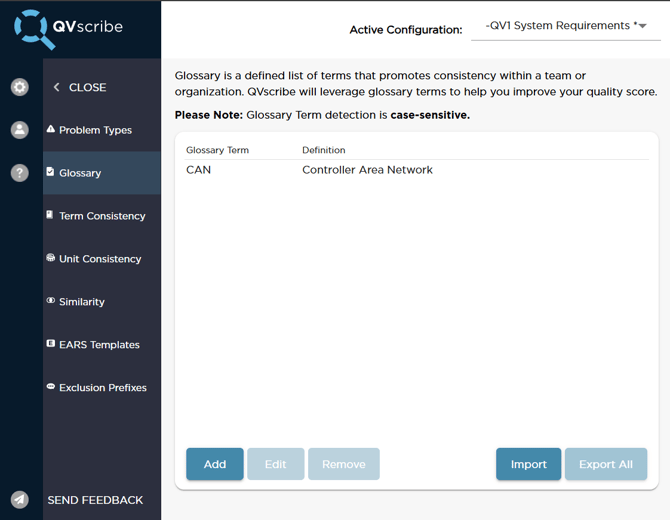
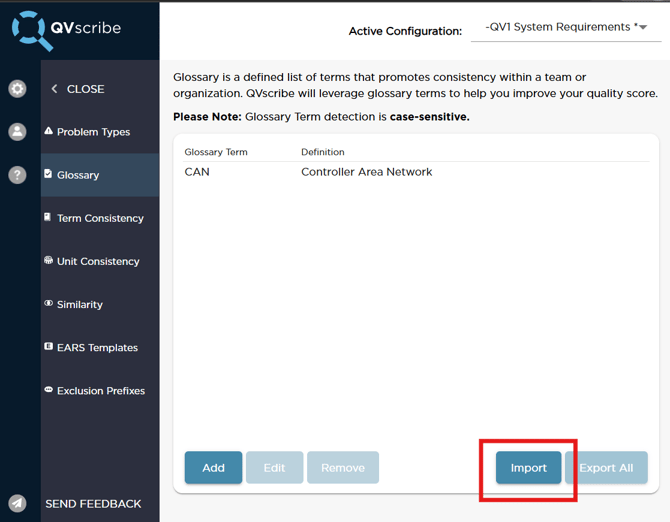
If you already maintain a glossary externally, you can also import a list of terms using a .csv file.
Term Consistency
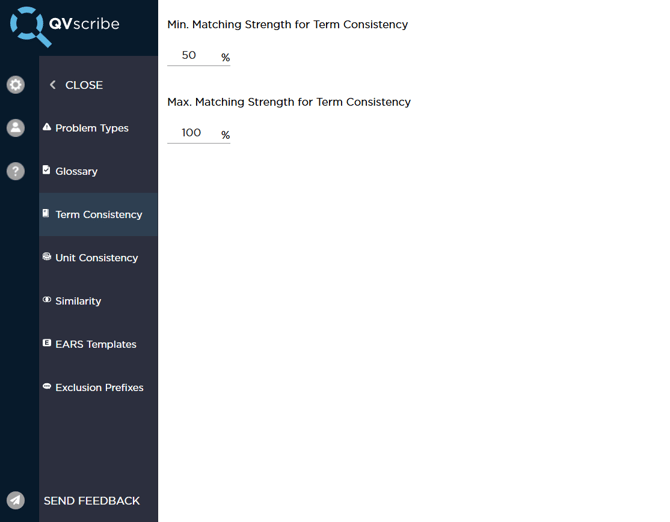
QVscribe checks for inconsistent terminology across requirements.
This analysis can be tuned using the Matching Strength setting.
The Matching Strength determines how similar terms must be before they are considered equivalent.
Example:
-
100% → terms must be identical
-
Lower values → QVscribe considers more terms similar
Unit Consistency
QVscribe detects measurement units within requirements and ensures they are used consistently.
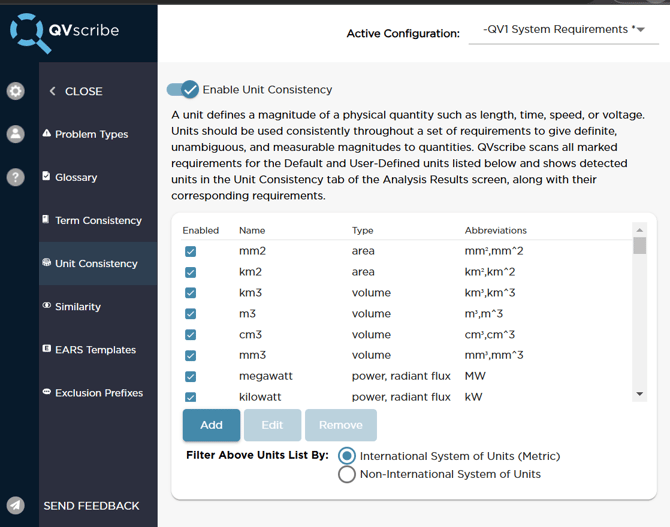
The Unit Consistency list includes:
-
unit name
-
unit type
-
common abbreviations
Units can be:
-
added
-
edited
-
removed
-
enabled or disabled
You can also specify whether a unit belongs to the International System of Units (SI).
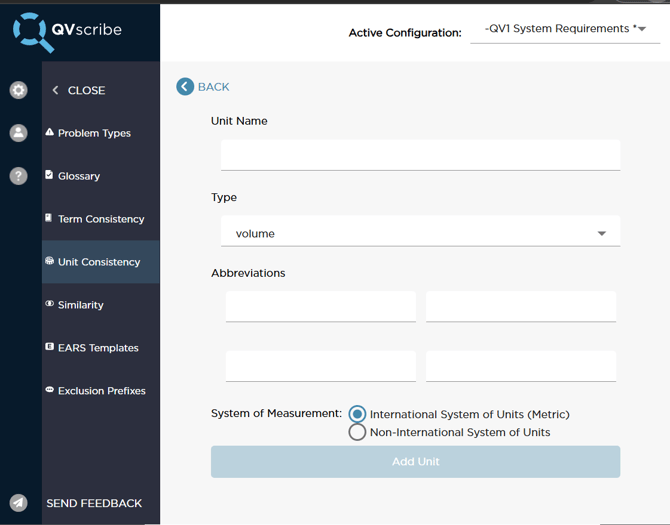
This allows filtering units based on SI or non-SI usage.
Similarity
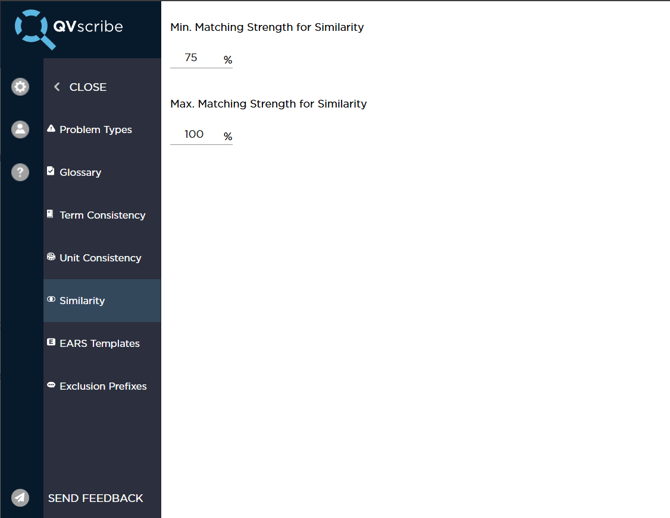
Similarity analysis detects repeated or highly similar requirements.
The Matching Strength setting determines how closely two requirements must match before QVscribe flags them as similar.
Higher values require stronger similarity, while lower values allow more variation.
EARS Templates
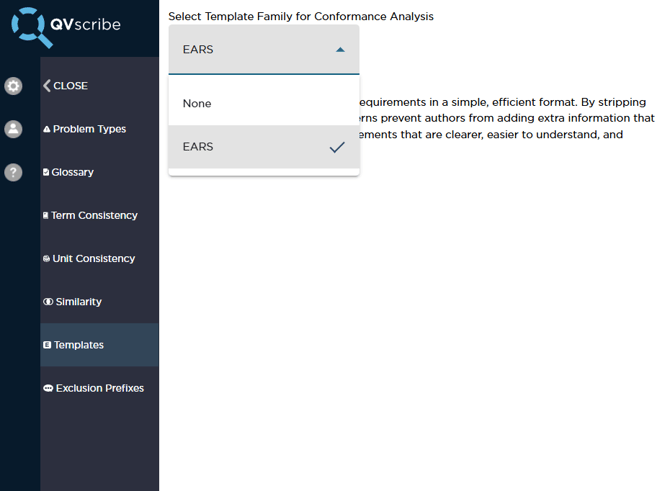
QVscribe provides assistance for authors using the Easy Approach to Requirements Syntax (EARS).
Within the Configurations section, configuration authors can enable or disable the EARS conformance check.
When enabled, QVscribe will:
-
detect EARS structures
-
evaluate conformance with EARS templates
-
include EARS analysis results in the quality analysis details.
Exclusion Prefixes
Some sections of a requirement may contain explanatory text such as rationale, comments, or background information. These sections are not intended to follow requirement-writing best practices and should not affect requirement quality analysis.
The Exclusion Prefixes setting allows configuration authors to define prefixes that mark text to be ignored by QVscribe during analysis.
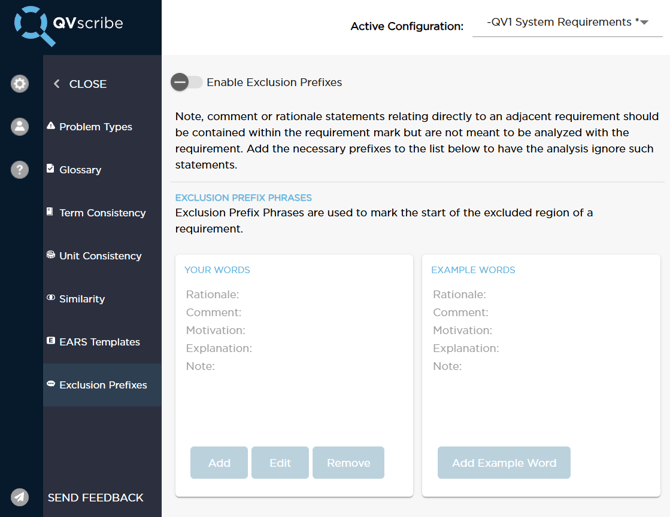
By default, Exclusion Prefixes are disabled in standard configurations. Configuration Authors can enable this setting if their analysis would benefit from excluding contextual information from scoring.
Example prefixes include:
-
Note:
-
Rationale:
-
Comment:
⚠️ The paragraph must begin with the defined prefix for it to be excluded from analysis.
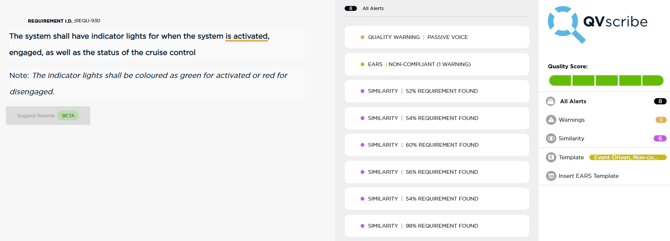
For more information on how Exclusion Prefixes behave, including how analysis resumes, how line breaks affect exclusions, and how to exclude the remainder of a requirement using [~] see:
Using Exclusion Prefixes in QVscribe
User Settings
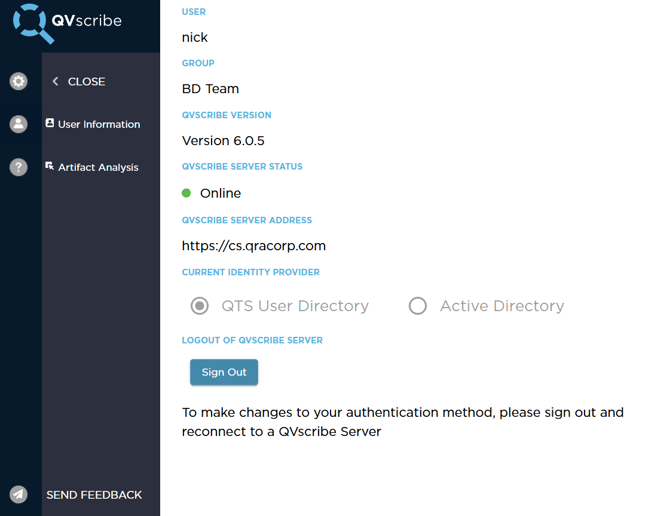
The User Settings section provides details about the current QVscribe session.
This includes:
-
the user account
-
the seat pool
-
the QVscribe extension version
-
the status of the QVscribe Team Server
-
the Team Server address
-
the identity provider currently in use
Users can also sign out of QVscribe from this section.
Help Center
The Help Center provides access to QVscribe support resources.
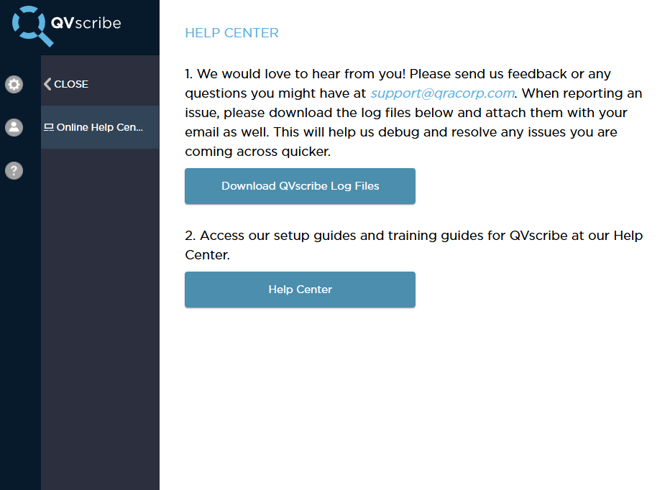
From this section users can:
-
access support contact information
-
submit diagnostic logs for troubleshooting
- open the QVscribe Knowledge Base/Help Center
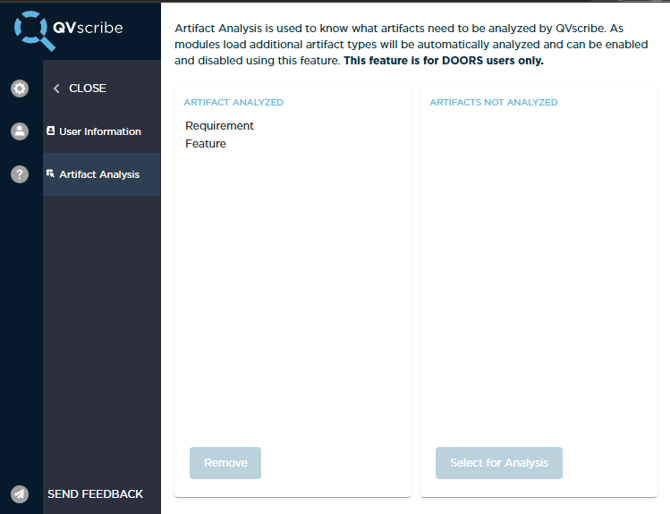
Artifact Analysis (IBM DOORS Next Generation Only)
⚠️ This setting applies only to IBM DOORS Next Generation.
Within User Settings, QVscribe provides Artifact Analysis settings specific to DOORS Next.
These settings allow users to define which artifact types are included in QVscribe summary analysis.
The Artifact Analysis list shows the artifact types currently analyzed by QVscribe when generating summary results.