.png?width=75&height=75&name=4.0%20(7).png)
QVscribe supports the Easy Approach to Requirements Syntax (EARS) to help authors create clear, structured requirements. In QVscribe for Web, you can work with EARS when analyzing requirements in:
-
Jama Connect
-
IBM DOORS Next Generation
-
Siemens Polarion
QVscribe provides tools for both reviewing EARS conformance and inserting EARS templates to help structure requirements.
🦖 Coach QRex: QVscribe 7 improved EARS pattern detection and coaching guidance. For the best experience when working with EARS templates and conformance checking, use QVscribe version 7 or later.
Accessing EARS Analysis in Summary View
You can review EARS conformance for multiple requirements from the QVscribe Summary View.
In each supported platform, selecting the QVscribe icon opens the Summary View for the current set of analyzed requirements.
From the Summary View you can:
-
review requirement quality scores
-
filter or navigate analyzed requirements
-
view EARS conformance results for each requirement
However, the Summary View does not allow editing requirements or inserting templates.
This is because the Summary View cannot verify editing or locking permissions within the source platform.
To insert or modify EARS templates, you must open the requirement in QVscribe Authoring View.
Opening Authoring View
To insert an EARS template or edit a requirement, open the requirement in QVscribe Authoring View within your platform.
Jama Connect
Requirements can be edited when they are in Draft status or when editing an item within an active Review.
Open the item for editing and select the QVscribe icon to launch Authoring View.
IBM DOORS Next Generation
When editing an artifact within a module or collection, the QVscribe icon appears while the artifact is in Edit mode.
Selecting the icon opens the requirement in QVscribe Authoring View.
Siemens Polarion
When viewing editable Work Items, the QVscribe icon appears near the item status or within the document viewer.
Selecting the icon opens the requirement in Authoring View.
For more information on platform-specific differences in accessing Summary View and Authoring View, see:
Chapter 2: Platform-Specific Differences (Web)
Inserting an EARS Template
EARS templates can be inserted directly while editing a requirement in QVscribe Authoring View.
To insert a template:
-
Open the requirement in Authoring View.
-
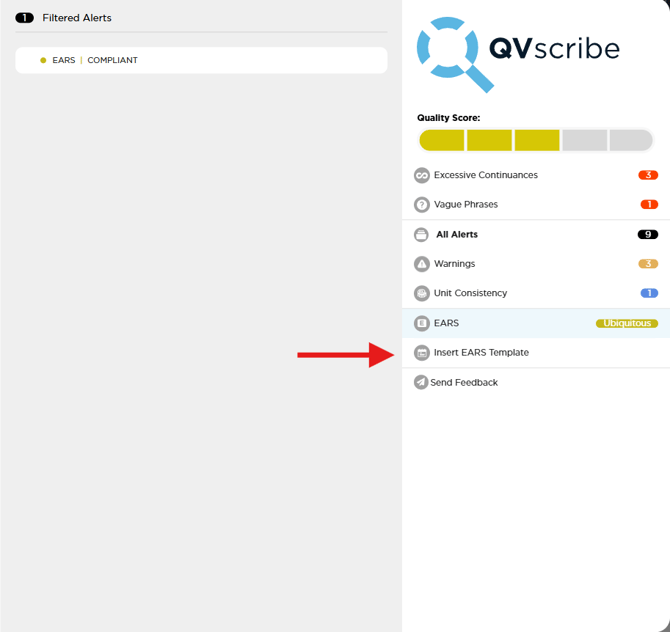
Select Insert EARS Template from the side panel
-
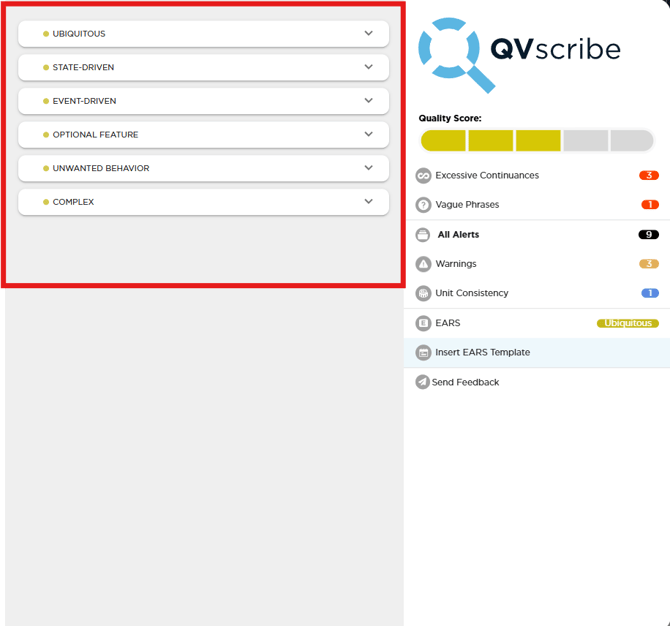
Choose the template type that best matches your requirement.
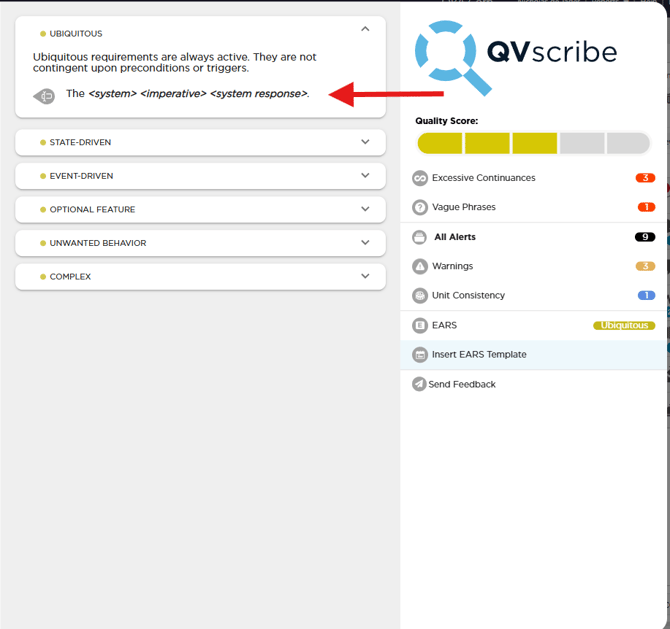
When you select a template, QVscribe displays the template structure and description.
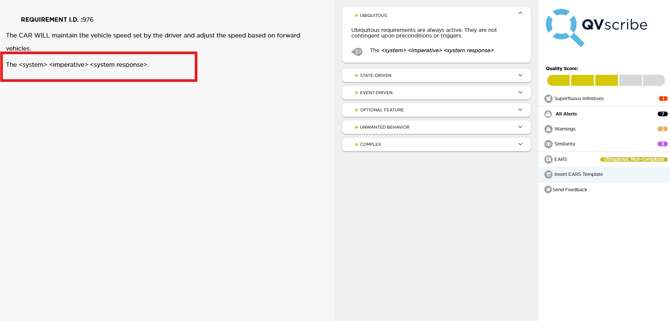
Click the insert icon to add the template to the requirement text.
After inserting the template, you can modify the placeholder text to complete the requirement. QVscribe will automatically analyze the requirement and check it for EARS conformance according to the active configuration.
EARS Template Types
QVscribe includes the standard EARS template patterns.
| Template Type | Description | Example |
|---|---|---|
| Event-driven | Triggered by an external event | WHEN <trigger> the <system name> shall <system response> |
| Option | Applies when a feature is included | WHERE <feature is included> the <system name> shall <system response> |
| State-driven | Active while a condition is true | WHILE <pre-condition> the <system name> shall <system response> |
| Ubiquitous | Always active | The <system name> shall <system response> |
| Unwanted behaviour | Defines response to an undesirable event | IF <trigger> THEN the <system name> shall <system response> |
Some requirements may combine multiple EARS patterns.
Complex EARS Templates
Complex EARS templates combine multiple EARS patterns within a single requirement.
| Pattern | Template |
|---|---|
| Optional feature, state-driven, and unwanted behaviour | WHERE <feature is included> WHILE <pre-condition> IF <trigger> THEN the <system name> shall <system response> |
| Optional feature, state-driven, and event-driven | WHERE <feature is included> WHILE <pre-condition> WHEN <trigger> the <system name> shall <system response> |
| Optional feature and state-driven | WHERE <feature is included> WHILE <pre-condition> the <system name> shall <system response> |
| Optional feature and event-driven | WHERE <feature is included> WHEN <trigger> the <system name> shall <system response> |
| Optional feature and unwanted behaviour | WHERE <feature is included> IF <trigger> THEN the <system name> shall <system response> |
| State-driven and unwanted behaviour | WHILE <pre-condition> IF <trigger> THEN the <system name> shall <system response> |
| State-driven and event-driven | WHILE <pre-condition> WHEN <trigger> the <system name> shall <system response> |
Viewing EARS Conformance
QVscribe automatically checks requirements for EARS compliance during quality analysis when the EARS compliance check is enabled in your configuration settings.
When reviewing a requirement in the analysis panel, QVscribe displays information about how the requirement aligns with a detected EARS structure.
Selecting the EARS alert expands the analysis and provides detailed feedback.
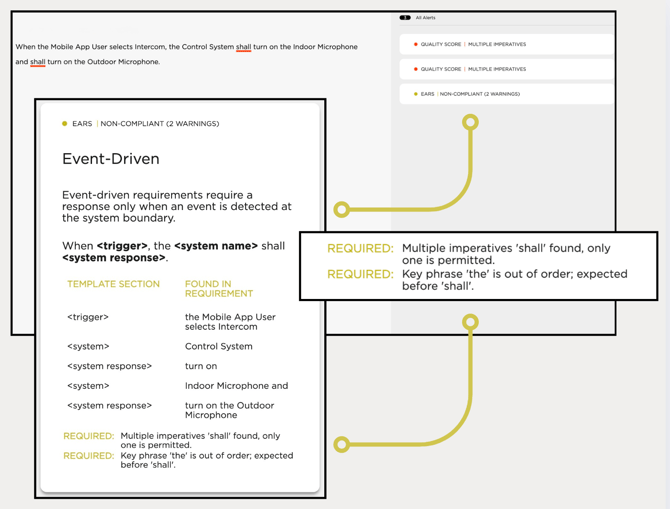
The compliance analysis highlights:
-
the detected EARS template type (such as Event-driven or State-driven)
-
the template structure used for comparison
-
the template elements identified in the requirement (such as trigger, system, or system response)
-
whether the requirement is compliant or noncompliant with the detected template
-
any issues or recommendations affecting conformance
This information helps authors understand how QVscribe interprets the requirement and identify where the structure may need adjustment.
Enabling or Disabling EARS Conformance
EARS conformance checking can be controlled in the QVscribe Configuration settings.
To adjust this setting:
-
Open the QVscribe Web extension in Chrome or Microsoft Edge.
-
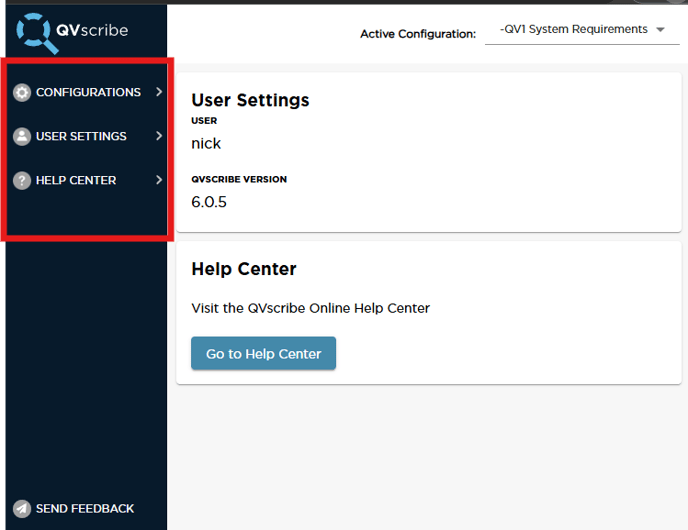
Select the Configurations tab.
-
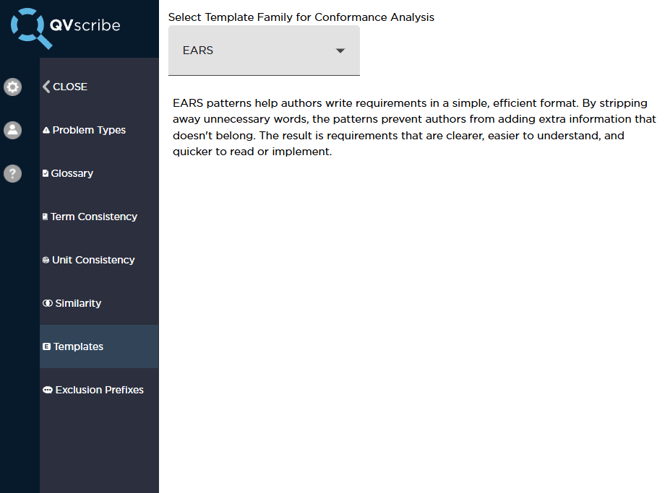
Select the Templates subtab.
-
Use the dropdown to enable or disable EARS compliance checking.
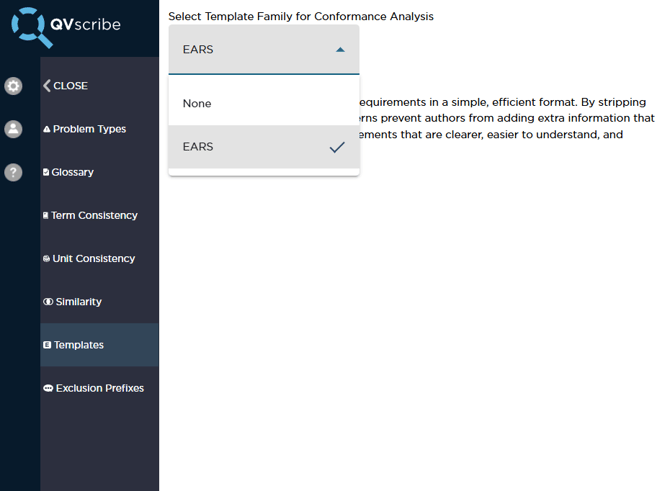
If your team does not use EARS as part of its authoring process, this feature can be disabled.
Note: This is a local user setting and is not part of the shared configuration.