.png?width=75&height=75&name=4.0%20(7).png)
The QVscribe Configuration Window allows users to customize how QVscribe analyzes requirements and displays analysis results.
These configuration settings apply to QVscribe for Microsoft Office, including:
-
Microsoft Word
-
Microsoft Excel
Configurations allow teams to tailor requirement analysis to match their organizational standards and authoring processes.
Selecting a Configuration
The way QVscribe analyzes requirements depends on the active analysis configuration.
To select a configuration:
-
Open the QVscribe tab in the Microsoft Office ribbon.
-
Select a configuration from the configuration dropdown menu.
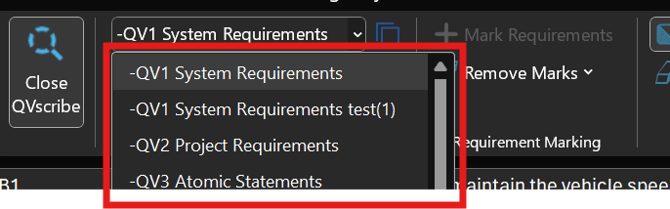
Selecting a configuration will apply that configuration to the QVscribe analysis in the active worksheet or document.
⚠️ Note: All users can select configurations, but modifying configuration settings requires the “Configuration Author” role.
Overview of the Configuration Window
The QVscribe Configuration Window contains the following main tabs:
-
Problem Types
-
Glossary
-
Unit Consistency
-
Exclusion Prefixes
-
Templates
These settings allow configuration authors to customize the quality indicators used during requirement analysis.
Problem Types
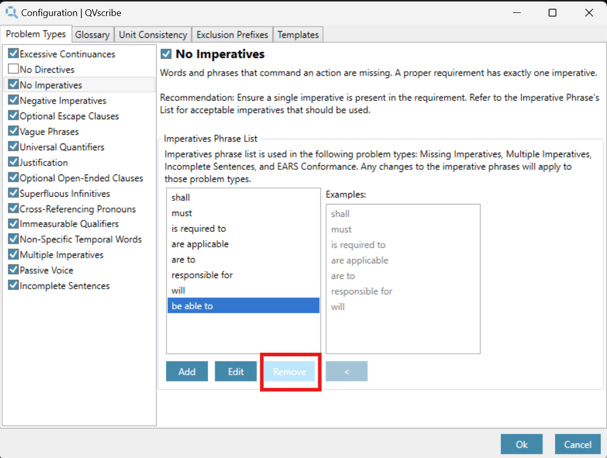
The Problem Types tab allows users to customize the types of language issues detected during requirement analysis.
The tab contains sixteen categories,each representing a class of words or phrases associated with a specific quality indicator.
Each category contains two lists:
QVscribe Words
Words used during QVscribe analysis.
Example Words
Common examples of words typically associated with that problem type.
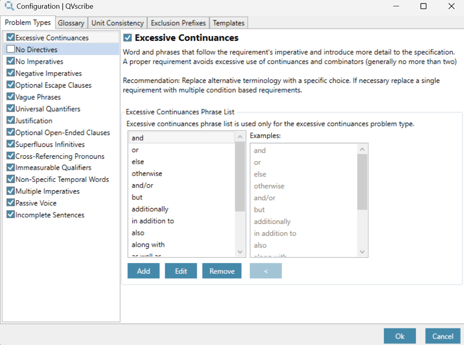
The QVscribe list is pre-populated with the example words but can be modified to match your organization’s requirements standards.
Managing Problem Type Words
Adding a Word or Phrase
-
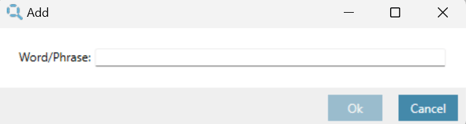
Click Add below the list.
-
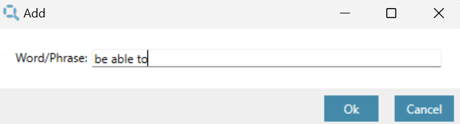
Enter the new word or phrase.
-
Click OK.
Editing a Word or Phrase
-
Select the word from the list.
-
Click Edit.
-
Modify the word or phrase.
-
Click OK.
Removing a Word or Phrase
-
Select the word in the list.
-
Click Remove.
Glossary
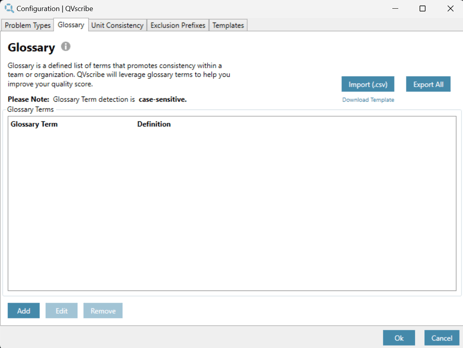
The Glossary allows organizations to define approved terms and definitions to promote consistent language across requirements.
Using a glossary helps:
-
improve requirement clarity
-
reduce ambiguous language
-
standardize terminology across teams
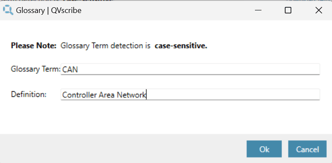
Glossary entries can also allow specific terms or acronyms that might otherwise trigger analysis warnings.
Managing Glossary Terms
You can:
-
Add new terms
-
Edit existing terms
-
Remove terms
Glossary lists can also be:
-
Imported from a .csv file
-
Exported for reuse
Unit Consistency
QVscribe detects measurement units within requirements and verifies they are used consistently.
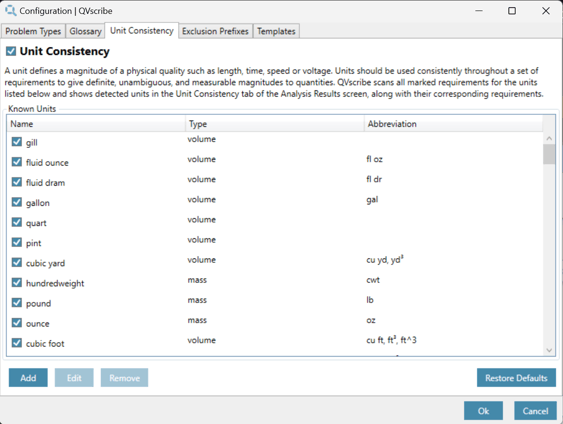
The Unit Consistency configuration maintains a list of:
-
unit names
-
unit types
-
common abbreviations
Units can be:
-
added
-
edited
-
removed
-
enabled or disabled
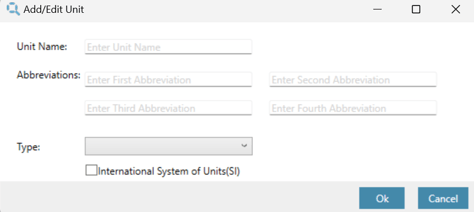
You can also specify whether a unit belongs to the International System of Units (SI).
This allows filtering of SI or non-SI units in requirement analysis.
Exclusion Prefixes
Requirements documents often include explanatory sections such as:
-
comments
-
rationale
-
background notes
These sections are not intended to follow strict requirement writing rules and should not affect quality analysis.
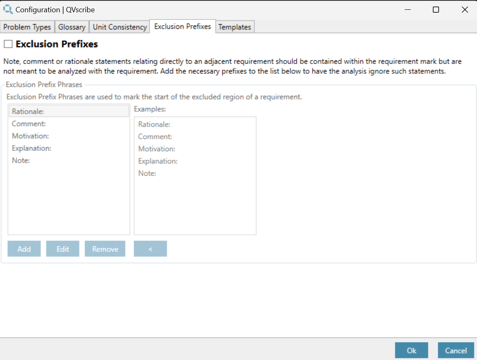
The Exclusion Prefixes tab allows configuration authors to define prefixes used to mark text that should be excluded from analysis.
Example prefixes may include:
-
Rationale:
- Note:
- Comment:
⚠️ Note:
The paragraph must begin with the prefix for QVscribe to exclude it from analysis.
Templates
QVscribe provides assistance for authors using the Easy Approach to Requirements Syntax (EARS).
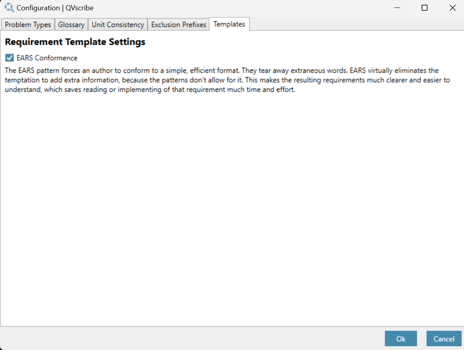
The Templates tab allows configuration authors to enable or disable EARS conformance checking.
When enabled, QVscribe will:
-
detect EARS structures
-
evaluate requirement conformance with EARS templates
-
include EARS results in the requirement quality analysis
If EARS does not align with your organization’s authoring approach, this feature can be disabled.