.png?width=75&height=75&name=4.0%20(7).png)
Configuration Groups Setup
QVscribe offers creation of Configuration Access Groups. These allow teams to assign configurations to individual groups, users, or the entire team; making sure users have the configurations they need for their analysis, while reducing the noise of some that may not be relevant to their project.
To view the Configuration Access Groups, navigate to the QVscribe Teams Server dashboard and log in with admin credentials. Then scroll down to “Configuration Management”.
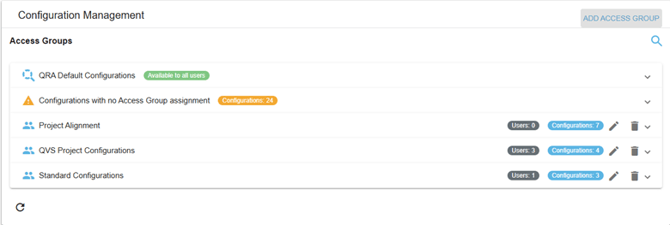
Here, you can see any Configuration Access Groups that have been created. You will find the QRA Default Configurations here (QV1 through QV4) as well as a list of configurations that aren’t assigned to specific groups. This is helpful for configurations you would want organization wide, such as required Glossary’s using organizational acronyms, or the baseline standard rules for requirements you want in place.
Select “Add Access Group” to create a new group.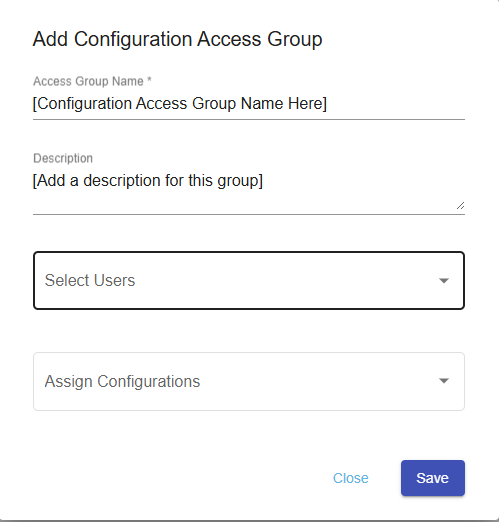
Give the group a name, a description, and then you can select which users should have access to the configurations, and exactly which configurations should be available. Select “Save”.
At any time, you can View, Edit and Delete a Configuration Access Group by selecting the group from the Access Groups list.

Adding a New Configuration to an Access Group
When creating a new configuration that you want to add to an Access Group, you’ll first need to save a copy of the new configuration branch.
Select “Save A Copy”.
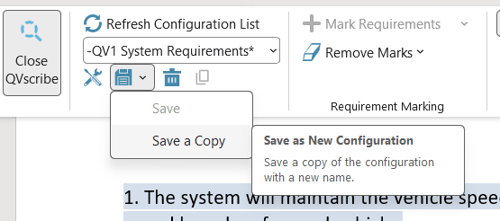
In QVscribe for MS Office
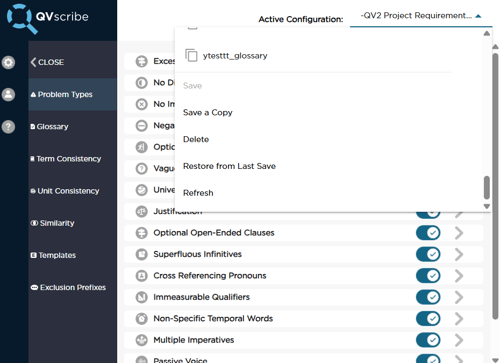
In QVscribe for Web
A window will appear where you can give the configuration a name and choose whether you want to assign it to a Configuration Access Group.
Select the appropriate Configuration Access Group, then select “Publish”.
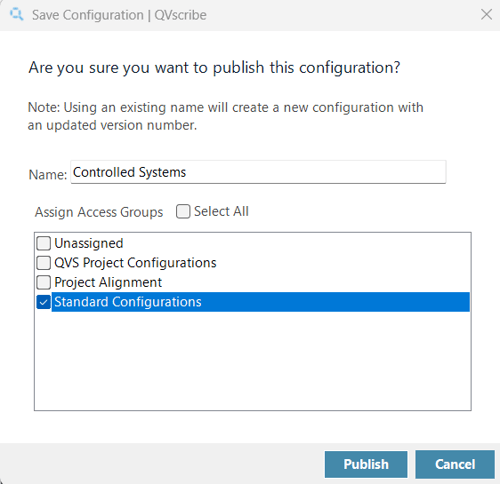
In QVscribe for MS Office
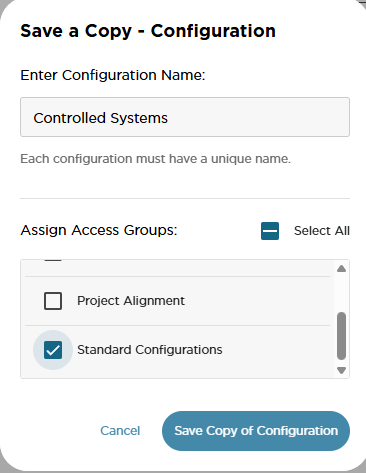
In QVscribe for Web
Once published, the new configuration will only be available to users who are members of the assigned Configuration Access Group.